How To Reduce Lag in FF Beta Testing in 2026
You joined FF Beta to get an early look at new updates and stay ahead of other players. But instead of testing new weapons, exploring new maps, and preparing for the next update, you are dealing with lag, high ping, and frustrating performance issues.
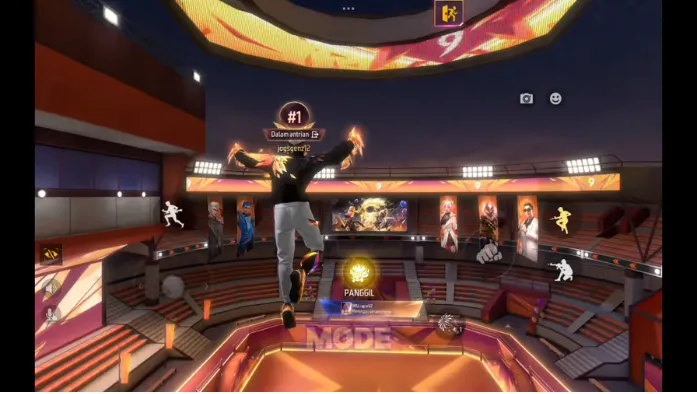
The game freezes during fights, your shots register late, and sudden frame drops make it difficult to play properly. The good news is that most FF Beta lag problems are not caused by the beta itself. In many cases, a few simple changes to your settings, device, and network can make the game run much smoother.
Why FF Beta Lags More Than the Official Game
FF Beta is different from the official game because it contains new features that are still being tested. New characters, weapons, maps, animations, and visual effects. Which are added before they are fully optimized, and can put extra pressure on both the game servers and your device.
As a result, even players who enjoy smooth gameplay in the official version may experience lag, frame drops, or higher ping inside the beta. The good news is that most of these issues can be reduced by using the right settings and optimizing your device properly.
Understand the Two Types of FF Beta Lag First
Before trying any fix, you need to identify what type of lag you are experiencing. Many players change random settings without knowing the real problem, which usually makes no difference.
FPS Lag causes frame drops, screen stuttering, and choppy movement. This happens when your device struggles to run FF Beta smoothly. In most cases, adjusting your graphics settings and optimizing your phone can solve it.
Network Lag causes high ping, delayed shots, rubber-banding, and enemies teleporting around the map. This is usually related to an unstable internet connection rather than your device.
Some players experience only one type of lag, while others deal with both at the same time. Start by fixing FPS lag first, then move on to network-related issues for the best results.
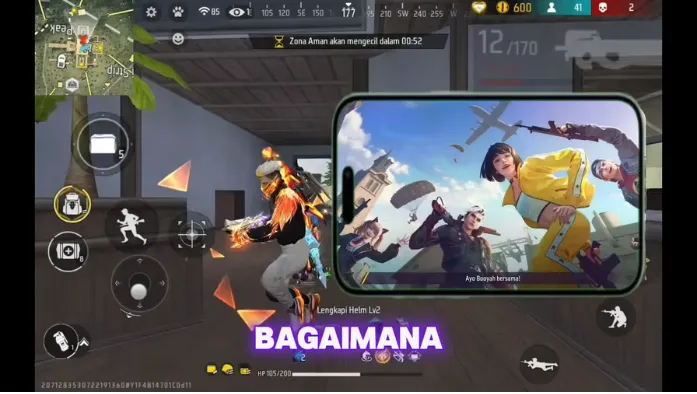
Best Graphics Settings for FF Beta on Any Phone
The right FF Beta settings can make a huge difference in performance. Start with the fixes below to reduce lag, improve FPS, and enjoy smoother gameplay.
Clean Your Collection Pack
Old and unnecessary game files can increase loading times and make FF Beta feel heavier than it should. Delete unused Collection Pack data and keep only the items you actively use to reduce the load on your device.
Apply the Right Graphics Settings
Using graphics settings that are too high for your phone is one of the biggest causes of lag. Lowering graphics, disabling unnecessary visual effects, and using the correct FPS setting can make gameplay much smoother.
Turn Off Replays and Background Features
Replay recording and other background features consume RAM while you play. Disabling them frees up resources and helps prevent stuttering, crashes, and sudden frame drops during matches.
Disable Unnecessary FF MAX Features
Many FF MAX effects look good but add extra strain on your device. Turning off HD textures, advanced animations, and visual effects can significantly improve FF Beta performance, especially on low-end phones.
Best FF Beta Settings Based on Your Device
Not every phone can run FF Beta the same way. Using settings that match your device can significantly reduce lag and improve overall performance.
Low-End Phones (1GB–3GB RAM)
Low-end devices need performance-focused settings. Set your graphics to Smooth, keep the FPS setting low, and disable all Free Fire MAX visual features.
You should also turn off Replay mode and close every background app before launching the game. These small changes can make FF Beta much more stable on weaker devices.
Mid-Range Phones (4GB–6GB RAM)
Mid-range phones can handle slightly better graphics without sacrificing performance. Use Standard graphics with a moderate FPS setting and keep unnecessary visual effects disabled.
It is also a good habit to clear your device cache regularly to prevent performance issues during longer gaming sessions.
High-End Phones (6GB RAM and Above)
High-end devices can run FF Beta smoothly on higher settings. You can use Standard, High, or Ultra graphics along with High FPS mode for a smoother experience.
However, even powerful phones can suffer from lag if too many background services are running, so it is still worth disabling unnecessary notifications, vibrations, and background activities before playing.
Common Mistakes That Make FF Beta Lag Worse
Many players still face lag because of simple mistakes they do not even notice. Avoiding the mistakes below can help FF Beta run smoother and more consistently on any device.
Using Maximum Graphics Settings
Many players assume higher graphics means a better experience. In FF Beta, max settings often cause frame drops because new content is still being optimized.
Playing With Too Many Background Apps
Apps running in the background consume RAM and processing power. Closing them before launching FF Beta can noticeably improve performance.
Ignoring Phone Temperature
An overheated phone automatically reduces performance to protect its hardware. Keeping your device cool helps maintain stable FPS and smoother gameplay.
Conclusion
Most FF Beta lag issues can be fixed with the right settings and a few simple optimizations. Lower your graphics, close background apps, keep your device cool, and use settings that match your phone’s performance.
Once the lag is gone, you can focus on testing new features, improving your gameplay, and staying ahead of the competition when the update goes live.